Sales Compensation Software Benchmark | Compare 15+ Sales Compensation Platforms
Download
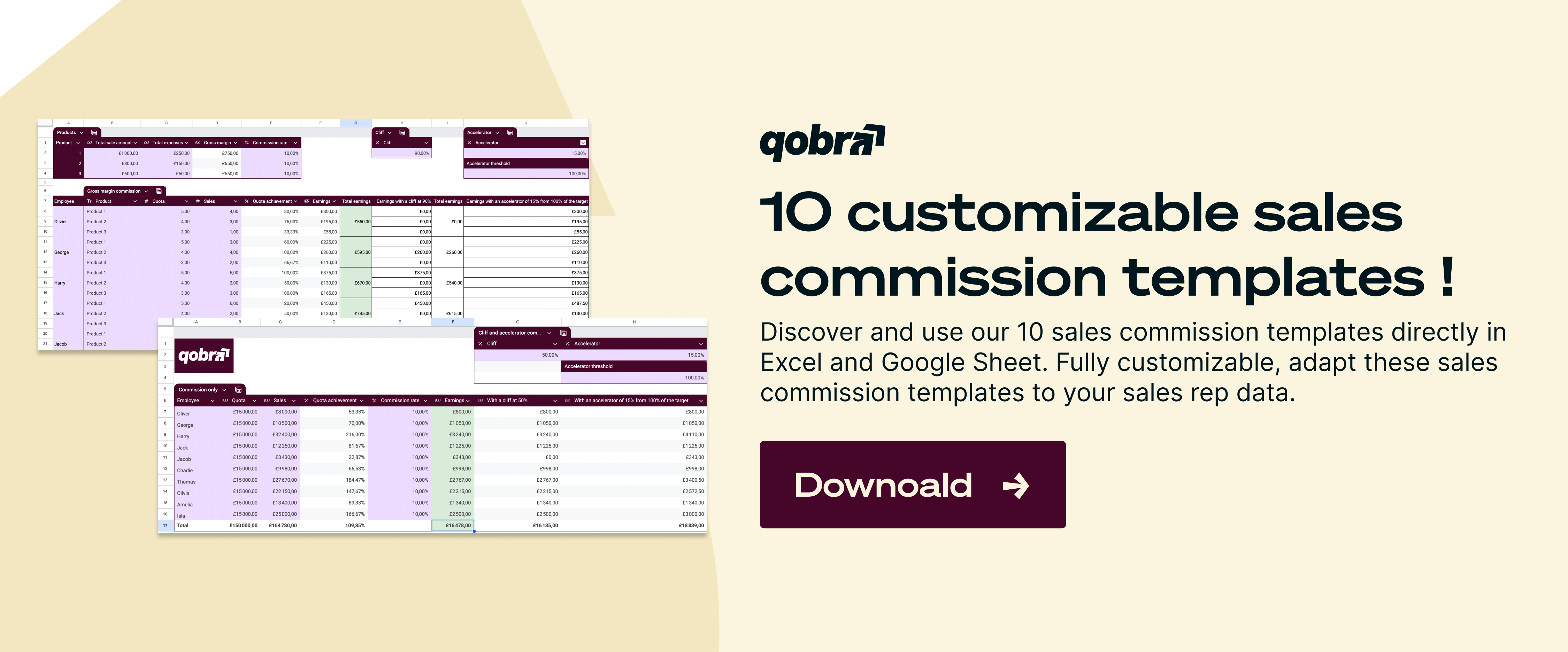
- The free commission tracking template for Excel and Google Sheets is organized into five tabs: Setup & Commission Plans, Raw Sales Data, Commission Calculator, Payout Summary and Dashboard, to keep the commission workflow clear and auditable.
- Closed-won deals reach a commission tracking spreadsheet through a CSV export from Salesforce or HubSpot, or automatically through Zapier or Google Apps Script workflows that push new CRM deals into a Google Sheet.
- In a commission spreadsheet, chargebacks and clawbacks are recorded as negative transactions that the SUMIFS formula in the payout summary subtracts automatically, while split commissions need extra columns for each rep and split percentage.
- A commission spreadsheet that works for 5 reps can become slow and prone to crashing with 50 reps and thousands of monthly transactions, and sales reps see no earnings until someone prepares and sends a report.
- Qobra fits mid-market sales teams that have outgrown a commission spreadsheet: Qobra connects to the CRM, handles split commissions natively by linking several reps to one deal, and lets ops teams build and modify plans in a no-code editor while reps and managers follow earnings in dashboards.
Are you spending hours every month wrestling with spreadsheets to calculate sales commissions, only to face a barrage of questions from your team about their payouts? Tracking variable compensation for multiple team members, each with different rates and targets, can quickly become a complex, error-prone task that consumes valuable time for sales, finance, and operations leaders.
A well-structured commission tracking spreadsheet is the essential first step to bringing clarity, accuracy, and transparency to your sales compensation process. It replaces disjointed files and manual calculations with a centralized, reliable system. This guide not only explains how to build and use an effective commission tracker but also provides a downloadable template for Excel and Google Sheets to get you started immediately. Move beyond basic calculations and build a system that saves time, reduces disputes, and keeps your sales team motivated and focused.
Your Free Commission Tracking Template
To streamline your process, we've developed a comprehensive template designed with best practices in mind. It’s pre-formatted to handle the entire commission lifecycle, from raw sales data to final payout reports.
Download Your Free Template:
This sales compensation worksheet is organized into logical tabs to ensure a clear and auditable workflow:
- Setup & Commission Plans: Define your sales reps, their roles, and their specific commission structures (e.g., fixed rates, tiered bonuses).
- Raw Sales Data: A dedicated tab to import or paste sales data directly from your CRM (e.g., deal date, client, product, sale amount, associated rep).
- Commission Calculator: The core of the tool, where formulas automatically calculate the commission earned for each transaction based on the rules you defined.
- Payout Summary: An aggregated view of total commissions owed to each rep for the specified period (e.g., monthly or quarterly).
- Dashboard: A visual overview of key metrics like total sales, total commissions paid, quota attainment per rep, and average commission rates.
Quick Start Guide
- Download: Save a copy of the template in your preferred format (Excel or Google Sheets).
- Configure: Navigate to the "Setup & Commission Plans" tab. Enter your sales representatives' names and define their commission rates or tiers.
- Import Data: Copy and paste your sales records for the period into the "Raw Sales Data" tab. Ensure the columns match the template format.
- Review Calculations: The "Commission Calculator" tab will automatically populate with the calculated earnings for each deal.
- Analyze Payouts: Check the "Payout Summary" and "Dashboard" tabs to review total compensation and performance metrics before initiating payments.
Structuring Your Sales Commission Tracker: A Step-by-Step Guide
An effective commission tracker is more than just a list of sales; it's a dynamic tool that requires a logical structure. Whether you use our template or build your own, organizing it correctly is crucial for accuracy and scalability.
Essential Columns for Your Sales Data
The foundation of any accurate calculation is clean, comprehensive data. Your "Raw Sales Data" tab should serve as the single source of truth for all transactions. At a minimum, it should include:
- Transaction ID: A unique identifier for each sale or invoice.
- Close Date: The date the deal was closed, essential for assigning it to the correct payment period.
- Customer Name: The client associated with the sale.
- Product/Service Sold: The specific item or service purchased.
- Sales Amount: The total revenue or margin value of the transaction.
- Sales Rep Name: The name of the salesperson responsible for the deal. This must be consistent with the names in your "Setup" tab to ensure formulas work correctly.
For more complex plans, you might also include columns for Contract Type (New Business vs. Renewal), Margin, or Region.
Demystifying the Core Formulas
The magic happens in the "Commission Calculator" tab, where formulas connect your sales data to your commission rules. While complex plans can require nested logic, a few key functions form the backbone of most spreadsheets.
What's the difference between VLOOKUP and XLOOKUP?
For years,
VLOOKUPwas the standard in Excel for searching for a value in the first column of a table and returning a corresponding value from another column. However, it's inflexible—it can only search left-to-right.XLOOKUP, available in newer Excel versions and Google Sheets, is a modern, more powerful replacement. It can look up values in any column and return data from any other column, making it more robust and intuitive for tasks like finding a sales rep's commission rate.
Here’s a breakdown of the most common formulas:
- Fetching the Commission Rate (VLOOKUP/XLOOKUP): This formula looks up the sales rep's name from the sales data tab and finds their corresponding commission rate from your "Setup" tab.
- Example:
=XLOOKUP([Rep Name], Setup!A:A, Setup!B:B, "Rate Not Found") - Calculating Tiered Commissions (IFS or Nested IF): Tiered plans are highly effective for motivation but can be tricky in a spreadsheet. The
IFSfunction (or a series of nestedIFstatements) checks the sales amount against predefined thresholds to apply the correct rate. - Example Formula:
=IF([Sale Amount]<=50000, [Sale Amount]*0.08, IF([Sale Amount]<=100000, [Sale Amount]*0.10, [Sale Amount]*0.12)) - Aggregating Payouts (SUMIFS): In your "Payout Summary" tab,
SUMIFSis essential. It sums the commissions for each rep over a specific period. - Example:
=SUMIFS(Calculator!G:G, Calculator!A:A, [Rep Name], Calculator!B:B, ">="&[Start Date], Calculator!B:B, "<="&[End Date]) - This formula sums all values in column G (Commission Earned) of the "Calculator" tab where the rep's name matches and the deal date falls within the specified period.
Tip: Use Named Ranges for Clarity
Instead of using cell references like Setup!A2:A10, define a "Named Range" (e.g., "RepList"). Your formulas will become =XLOOKUP([Rep Name], RepList, ...), making them much easier to read, debug, and maintain, especially as your team grows.
Handling Advanced Commission Scenarios
Standard commission plans are straightforward, but real-world sales compensation often involves more complexity. A robust spreadsheet must be able to handle these advanced cases accurately.
Split Commissions
When two or more reps collaborate on a deal, the commission must be split. The simplest way to manage this is to add extra columns to your "Raw Sales Data" tab: Rep 2 Name and Split Percentage. Your calculation sheet will then need logic to divide the commission accordingly.
- Step 1: Add columns for
Rep 1,Split 1 (%),Rep 2,Split 2 (%). - Step 2: In your calculator, create separate commission lines for each rep involved in the split.
- Step 3: Multiply the total commission amount by the rep's respective split percentage to find their earned portion.
This manual approach works but can become cumbersome. It highlights one of the first major challenges where spreadsheets start to break down. Automated platforms like Qobra handle splits natively, linking multiple reps to a single deal and calculating payouts automatically based on predefined rules.
Overrides and Bonuses
Managers often earn an "override"—a small percentage of their team's total sales—in addition to their own commissions. This requires a separate calculation block.
- Filter by Team: Use the
FILTERorSUMIFSfunction to isolate the sales generated by a manager's direct reports. - Calculate Total Team Sales: Sum the sales amounts for the filtered data.
- Apply Override Rate: Multiply the total team sales by the manager's override percentage.
- Add to Payout Summary: Add this override amount to the manager's personal commission earnings in the final payout report.
Chargebacks and Clawbacks
What happens when a customer churns shortly after a deal is closed or an invoice isn't paid? A "clawback" or "chargeback" clause means the rep must pay back the commission. To track this, add a "Transaction Type" column to your data tab. A new sale is a positive amount, while a chargeback is entered as a negative amount. Your SUMIFS formula in the payout summary will automatically subtract these negative values, ensuring payouts are accurate.
From Calculation to Payment: Establishing a Reliable Workflow
A spreadsheet is a powerful calculator, but it's not a complete system. To minimize errors and build trust with your sales team, you need a defined operational workflow around your tracker.
- Data Import & Validation: Set a recurring schedule (e.g., daily or weekly) to import fresh data from your CRM. Before calculating, quickly scan the data for obvious errors: missing rep names, zero-value sales, or incorrect dates. A simple data validation rule in Excel/Sheets can help prevent typos in rep names.
- Calculation & Review: Once data is in, the formulas should update automatically. A manager or Sales Ops specialist should review the results for anomalies, such as unusually high commissions that might indicate a data entry error. This is a critical step that helps you avoid common sales commission mistakes.
- Approval & Communication: Before sending figures to payroll, get formal sign-off from the Head of Sales or Finance. Once approved, communicate the results clearly to each rep. A well-designed payout summary or commission statement can prevent most disputes.
- Archiving & Audit Trail: At the end of each payment period, save a static version (e.g., PDF or a values-only copy) of the spreadsheet. This creates an audit trail and a historical record that is invaluable for compliance and resolving future discrepancies.
Warning: The Perils of Manual Workflows
While this workflow adds a layer of control, it remains heavily reliant on manual checks. A single copy-paste error or an incorrect formula change can lead to significant payment mistakes. This lack of a foolproof audit trail and automated validation is a key reason why rapidly growing companies eventually migrate from spreadsheets to dedicated commission management software.
When Spreadsheets Aren't Enough: The Limits of Manual Tracking
For startups and small teams, a commission tracking spreadsheet is a fantastic, low-cost solution. However, as your team grows and your sales commission plans become more sophisticated, the limitations become increasingly apparent.
- Scalability Issues: A spreadsheet that works for 5 reps can become slow, unwieldy, and prone to crashing with 50 reps and thousands of monthly transactions.
- Error-Prone: The risk of manual errors—from data entry mistakes to broken formulas—is extremely high. Spreadsheets frequently contain errors, a risk you can't afford when dealing with compensation.
- Lack of Real-Time Visibility: Sales reps have no visibility into their potential earnings until a report is manually prepared and sent out. This delay disconnects their daily activities from their financial motivation. Providing real-time access to commission data is a powerful performance driver that spreadsheets cannot offer.
- Security and Version Control: With multiple users potentially accessing and editing the file, it's difficult to maintain a single source of truth or protect sensitive compensation data.
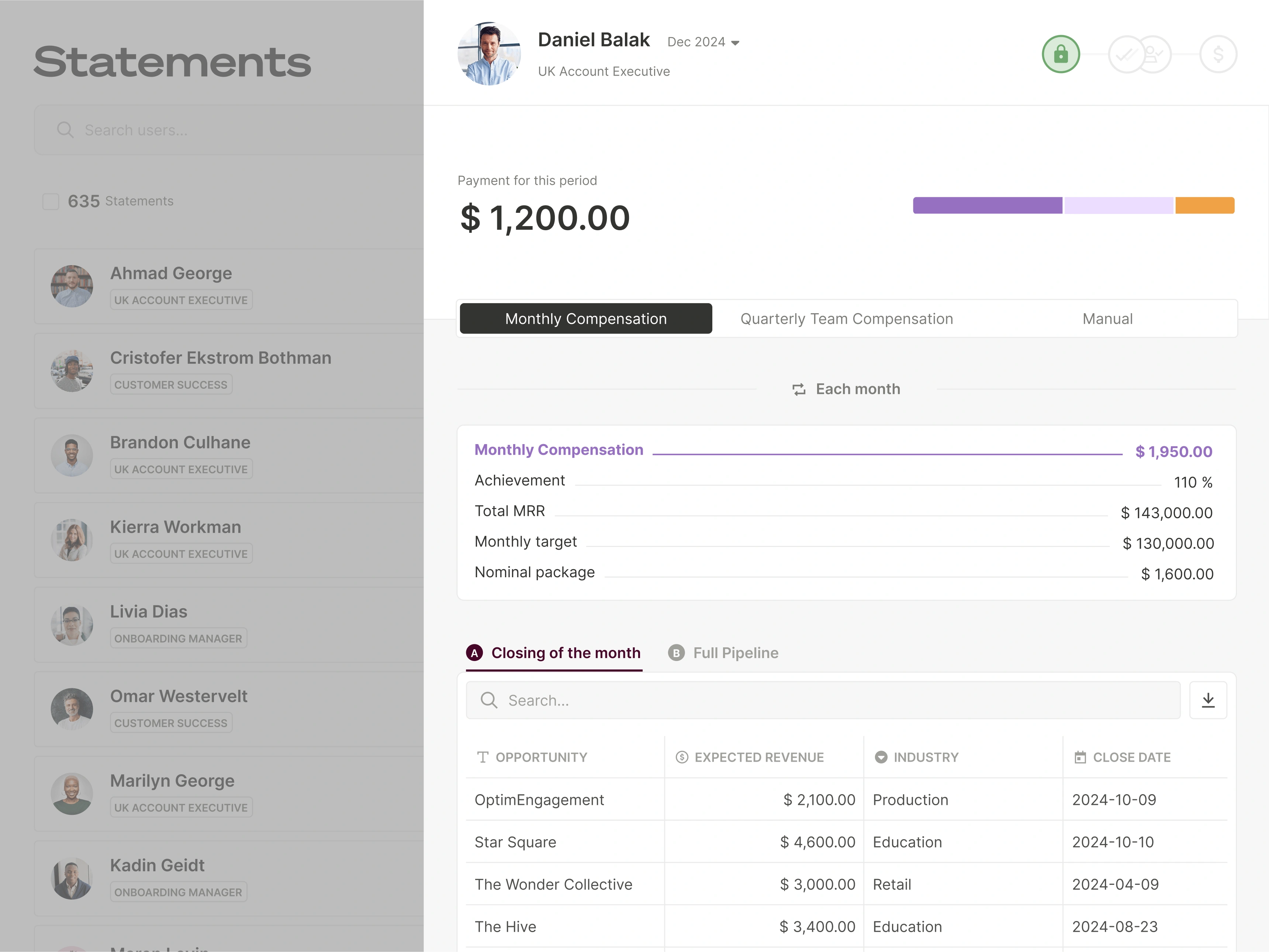
When these pain points begin to consume more time than they save, it’s time to consider a dedicated solution. Platforms like Qobra are designed to overcome these challenges. By connecting directly to your CRM, Qobra automates the entire process—from data import to calculation and reporting. Qobra's no-code editor allows you to build and modify complex plans in minutes, while Qobra's transparent dashboards give reps and managers instant, real-time insight into performance and earnings. This automation not only eliminates errors but also frees up hours of administrative time, a key benefit of using a commission tool.
While a spreadsheet is an excellent starting point, the most competitive sales organizations eventually transition to a tool that provides the speed, accuracy, and motivation necessary to scale effectively. When you're ready to choose a commission software, look for a solution that combines the flexibility of a spreadsheet with the power of automation.
A robust commission tracking spreadsheet is a non-negotiable tool for any business with a sales team. It brings structure, transparency, and accuracy to a critical business function. By following the principles outlined in this guide and using our template, you can build a reliable system that supports your current needs. However, always be mindful of its limitations and know when it's time to graduate to a more powerful, automated platform that can grow with your business and keep your team performing at its peak.
Frequently Asked Questions
How do I link sales data from my CRM to the spreadsheet?
The most common method is a manual export/import. Most CRMs (like Salesforce or HubSpot) allow you to export a report of closed-won deals as a .CSV file. You can then open this file and copy-paste the data into the "Raw Sales Data" tab of your commission tracker. For more advanced users, tools like Zapier or Google Apps Script can create automated workflows that push new deals from your CRM to a Google Sheet, reducing manual effort.
What are the benefits of using a template over building my own spreadsheet?
Using a pre-built template offers several advantages. First, it saves significant time, as the structure, formulas, and dashboards are already created. Second, a good template is built on best practices, ensuring you include all necessary components and follow a logical workflow. Finally, it reduces the risk of formula errors that can easily occur when building a complex calculator from scratch. Our template is designed to give you a reliable foundation for your sales commission management.
How can I ensure the accuracy and security of my commission data in a shared spreadsheet?
Accuracy can be enhanced by using data validation to restrict inputs and by implementing a peer-review process before finalizing payouts. For security in Google Sheets, use the "Protect Sheet" feature to make key tabs (like the calculator and setup) editable only by specific people (e.g., admins). You can also share the entire file in "View Only" mode with sales reps so they can see their data without being able to alter calculations. However, for true data integrity and security, a dedicated platform with granular user permissions is the superior solution.
How do you eliminate commission calculation errors in spreadsheets?
A spreadsheet never removes every error, but a defined workflow around the commission tracker reduces them. Import CRM data on a recurring schedule and scan the data for missing rep names, zero-value sales or incorrect dates. Add a data validation rule to prevent typos in rep names. Have a manager or Sales Ops specialist review the results for anomalies, get formal sign-off before payroll, and save a static copy of the spreadsheet at the end of each payment period as an audit trail.
What is a simple tool for managing sales commission changes?
For a small team, a commission spreadsheet is the simple option: change the rate or tier in the "Setup & Commission Plans" tab, then save a static copy at the end of each payment period as an audit trail. Version control becomes difficult once several people edit a shared spreadsheet. Qobra fits mid-market sales teams that have outgrown the spreadsheet: ops teams modify plans in Qobra's no-code editor, and Qobra keeps traceability of the rules applied and of plan versions.
Spreadsheets break down at scale; dedicated sales commission software is the next step — see the top tools.
When your spreadsheet reaches its limits, compare the best commission tracking software that replaces it.